
Guide
Here's the quick version: tell Jupjup what you know, hover words on any Korean page, watch with clickable subtitles, and review what you save. It takes about three minutes. If something's not working, jump to the fixes.
Getting started
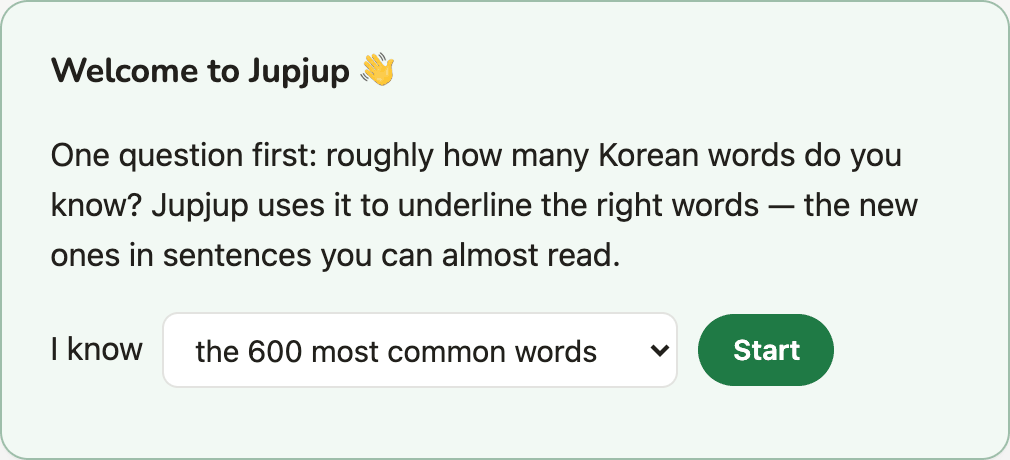
1. Say how many words you know
The first time you open Jupjup, it asks how many Korean words you know. A rough guess is fine. Pick the closest one and hit Start. Jupjup uses this to decide which words to underline. You can change it later in Settings, and fix individual words on the Words page.
2. Hover a word on any Korean page
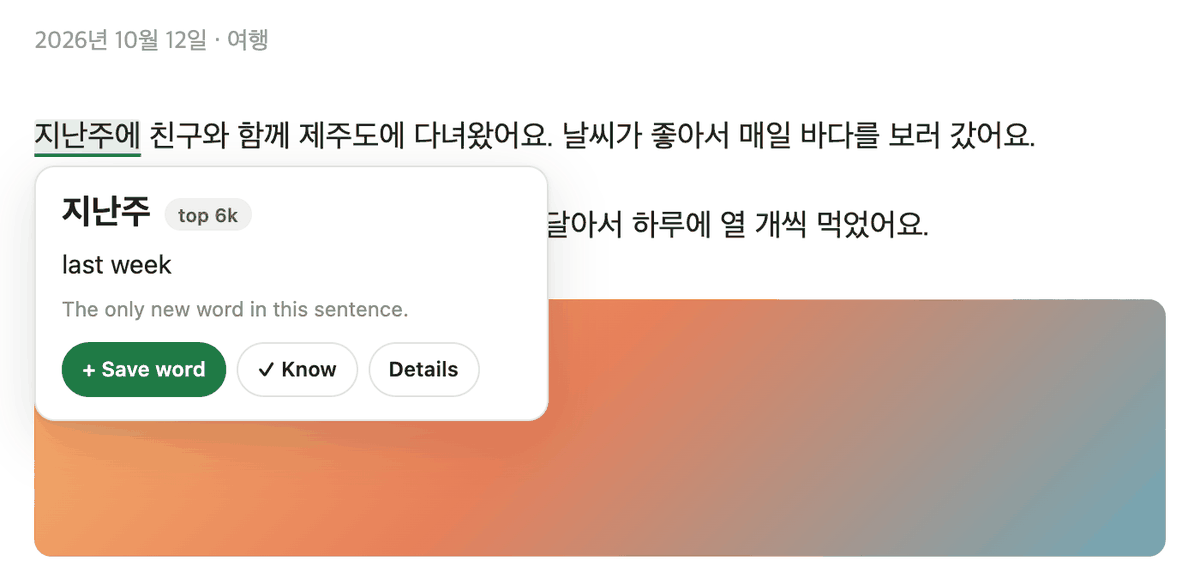
Open any page with Korean on it and rest your mouse on a word. A card pops up with the meaning and how the word is put together. When a sentence has just one word you don't know, Jupjup underlines it in green. That's your next word.
- + Save word keeps it, along with the sentence it came from, so it shows up in your reviews.
- Know means you've got this one. It stops being underlined.
- Details opens the full breakdown, grammar included.
3. Watch with clickable subtitles
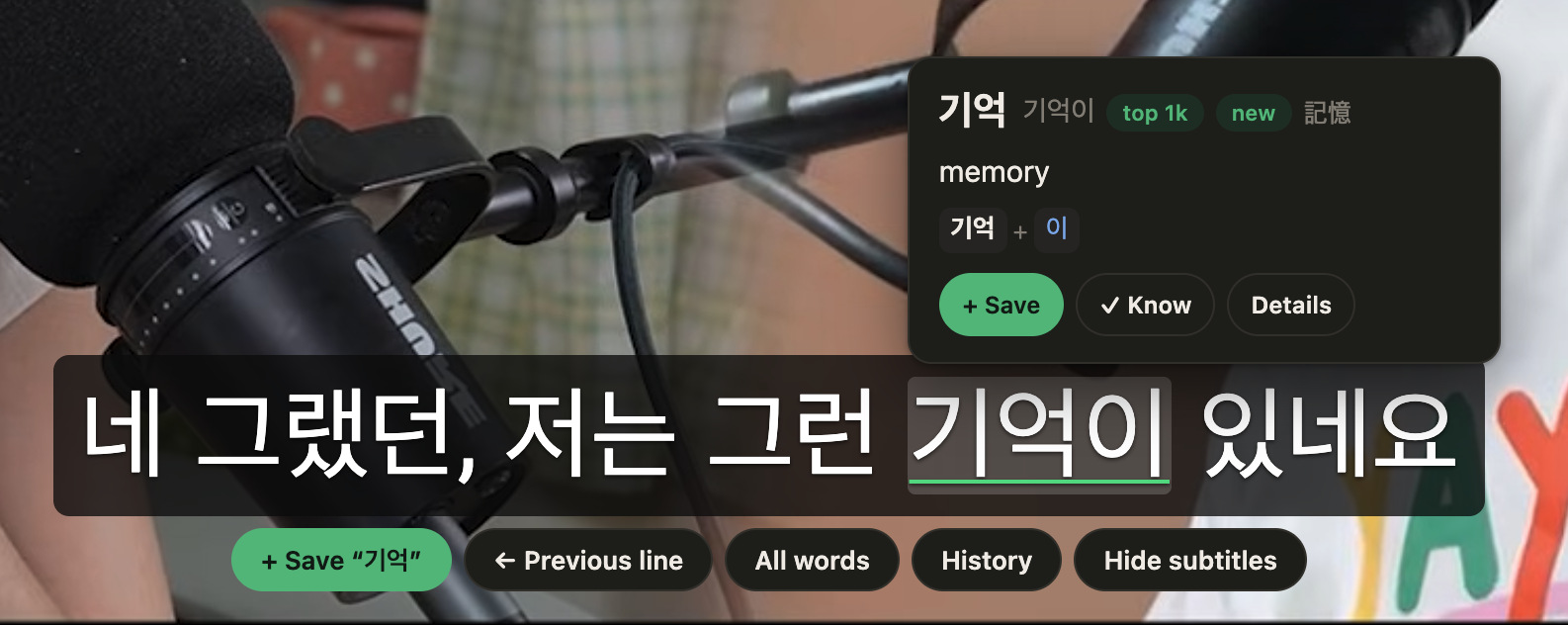
On YouTube or Netflix, switch on Korean captions. Jupjup swaps them for its own clickable line, in the same spot and font. Rest your mouse on a word to look it up. The video pauses while you're on the subtitles and carries on when you move away.

- Missed something? Press A to jump back a line.
- All words lists every word in the line. History shows earlier lines, so you can replay one.
- Hide subtitles brings back the original captions. Alt+Shift+S (Option+Shift+S on a Mac) turns Jupjup's subtitles off and on.
4. Review a little every day
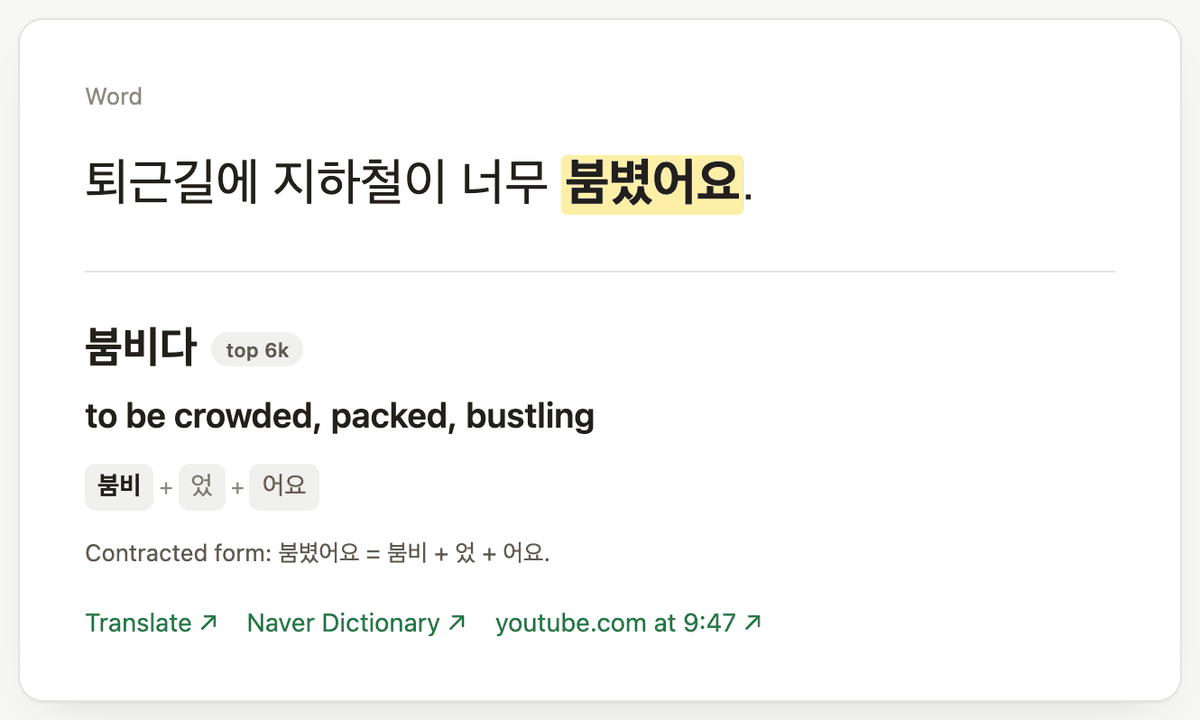
A few minutes a day is plenty. Open Review (the green button in the toolbar popup) and you'll see a sentence with your word highlighted. Try to remember what it means, press Space to check, then tell Jupjup how it went: 1 Again, 2 Hard, 3 Good, 4 Easy. The easier it was, the longer until you see it again.
Where things are
Click the Jupjup icon in Chrome's toolbar to get to any of these.
- Home: your word count, today's reviews, and your progress.
- Review: today's cards.
- Library: everything you've saved. Search, edit, or delete.
- Words: what you know and what you're learning.
- Settings: underlining, subtitles, Anki, and your data.
When something isn't working
I don't see any underlines
- Reload the page. Pages that were already open when you installed Jupjup need a refresh.
- Click the Jupjup icon and check that "Jupjup on this site" is ticked.
- Underlines are rare on purpose. Out of the box, only a sentence with exactly one new word gets one. In Settings → Underline you can allow two or three new words, or every word you don't know.
- If the Korean is in a picture, it isn't text yet. Try "Read Korean in images" in Settings. It's experimental.
Hovering doesn't show a card
- Check Settings → "Word cards on hover". It shouldn't be on "Only while I hold Shift" or "Off".
- You can also Alt-click (Option-click on a Mac) a word to open its full card, or select some Korean text and press the button that appears.
- Chrome doesn't let extensions run on some pages, like its own settings pages and the Web Store.
No subtitle bar on YouTube or Netflix
- Turn on Korean captions in the video's own subtitle menu. Jupjup reads those, so if a video has none, there's nothing to show. YouTube's automatic Korean captions work too.
- In Settings, check that "Replace Korean subtitles with Jupjup's clickable subtitles" is ticked.
- Try Alt+Shift+S (Option+Shift+S on a Mac). You may have hidden them with the Hide subtitles button.
- Reload the video page after installing or updating Jupjup.
The video won't pause, or won't start again
Jupjup pauses the video while your mouse is on the subtitles or a word card, and starts it again when you move away. If that isn't happening, look at Settings → "Pause while my mouse is on the subtitles". And if you paused the video yourself, Jupjup leaves it paused.
Saving doesn't keep the audio
Audio is off until you turn on "Record the line's audio when I save from subtitles" in Settings. Jupjup records by replaying the line once, so it can't do it on Netflix, Disney+, or Prime Video. They block it.
A meaning looks wrong
When a word has several meanings, Jupjup shows the most common one first and lists the rest under "Also". If it's still wrong, press Something wrong? on the card. You can set your own meaning for that word, and you can send the report so it gets fixed for everyone. Nothing is sent unless you press Send.
I'm switching computers
Your data lives in this Chrome profile, on this computer, and uninstalling Jupjup deletes it. Before you switch, open Settings and press Download backup under "Your data". On the new computer, install Jupjup and press Restore from backup.
Something else
Write to hello@getjupjup.com and tell me what you were doing and on which site. A screenshot helps a lot.
For what changed in each version, see What's new. For what happens to your data, see Privacy.